NethVoice Mobile App
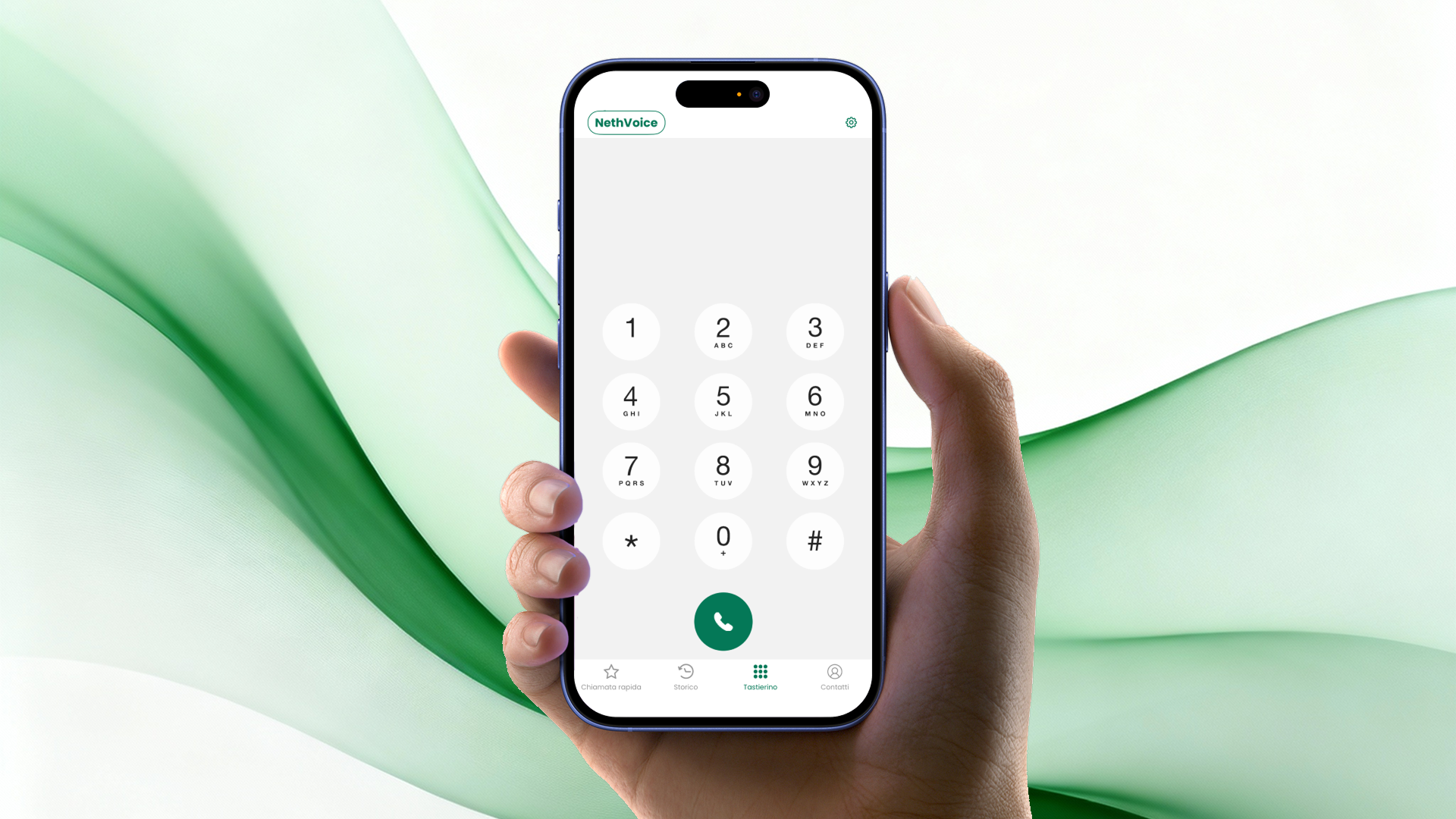
The NethVoice Mobile App (NethCTI) brings enterprise VoIP capabilities to your smartphone or tablet, allowing you to make and receive calls using your business phone number from anywhere with an internet connection.
The mobile app is only available with an Enterprise subscription. While the app itself is free to download, access to the provisioning service required to configure and enable it on your device is exclusive to Enterprise subscribers. See Subscription page for details.
Community subscription users cannot access or use this feature.
Key Features
The NethVoice mobile app provides a complete phone system experience on your mobile device:
- Make and Receive Calls — Use your business extension to make outbound calls and receive inbound calls using your company number
- Address Book Integration — Access all corporate and personal contacts directly from the app
- Call History — View detailed call logs including placed, received, and missed calls
- Presence Management — Set your availability status (available, busy, away) and see colleagues' presence in real time
- Call Management — Transfer calls, record conversations, place calls on hold, and manage conference calls
- Queue Integration — For call center agents: log in/out of queues by dialing simple feature codes
- Speed Dial — View the colleagues you’ve added to your favorites, see their status, and call them quickly
Supported Platforms
The NethVoice mobile app is available for:
- iOS — iPhone and iPad (Apple ecosystem)
- Android — Smartphones and tablets (Google ecosystem)
Both platforms receive automatic updates with new features and improvements.
Installation
Download
Download the NethVoice mobile app from your device's app store:
- iOS: Search for "NethVoice" on the Apple App Store
- Android: Search for "NethVoice" on Google Play
Configuration
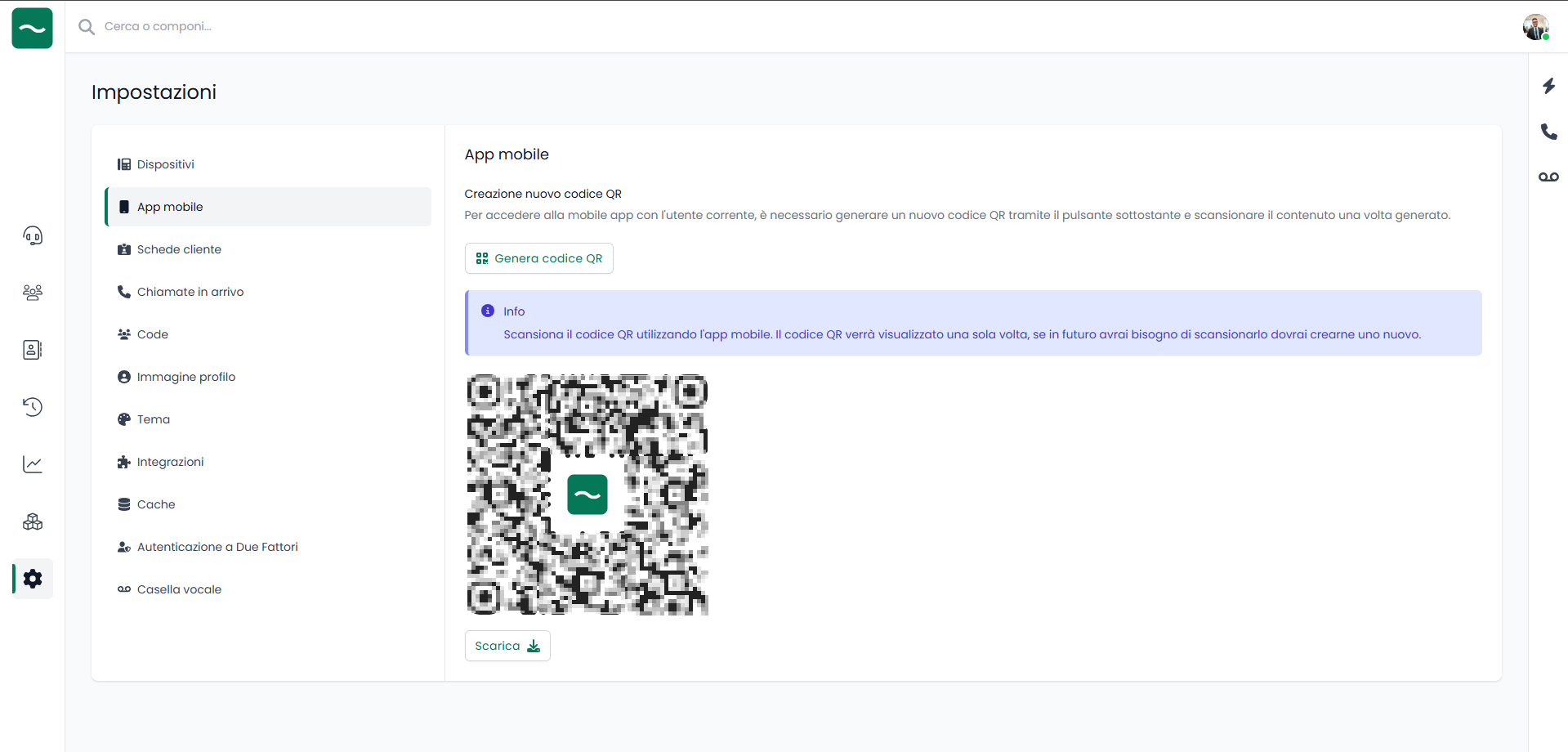
Configuration is simple and requires only a QR code:
- Open the NethVoice mobile app
- Scan the QR code displayed in your NethVoice web client (NethCTI):
- Click on the Settings icon in the left sidebar
- Access the Mobile App section
- Click on the Generate QR Code button
- The app auto-configures itself in seconds — no manual entry required
- Once configured, you're ready to make and receive calls
If you’re unable to access the CTI to scan the QR code, you can also configure the app manually. Simply enter your username followed by the NethVoice FQDN, and then your password:
| Field | Value |
|---|---|
| Username | username@hostnamenethvoice.com |
| Password | your-password |
The app will still connect to your account correctly.
Supported Operating Systems
- iOS: iOS 16.0 and later
- Android: Android 8.0 (API level 26) and later
Device Compatibility
The app works on:
- Smartphones with an active internet connection
- Tablets (including iPad and Android tablets)
App Features
Speed Dial
In the Speed Dial section, you can add or manage your list of favorite contacts to easily monitor their availability. Each added contact displays a status:
- 🟢 Available – when the contact is not on a call
- 🔴 Ringing – when their phone is ringing
- 🔴 Busy – when the contact is currently on a call
To add a contact to the list, tap “Edit” and then press “+”. You will be asked to enter the Title (Name and Surname), the Phone Number or SIP address (extension), and check the Status, which monitors the extension’s state. You can also add a photo or import the contact directly from your Address Book. Once saved, the contact will appear in the list.
History
Inside the History section, there are three subsections where you can view all handled, missed, and received calls. The “Missed” subsection filters incoming calls that were not answered. The “Recorded” subsection lists all recorded calls; by tapping the “i” information icon, you can access a page where you can listen to the recording. Tapping the “i” again allows you to delete the recording, send it via email, share it with other apps, or lock it to prevent deletion. In the “All” subsection, using the “Edit” button you can delete all calls or select only the ones you want to remove. Next to “Edit”, there is a button that lets you export all calls by generating a text file containing the call data.
Keypad
In the “Keypad” section, you can dial a number to make a call, add a new contact, or add the dialed number to an existing contact in the Address Book. At the bottom right, the “Delete” button appears to remove the last digit or the entire number entered.
Making a Call
Making a call with the NethVoice app is very simple and can be done from the Keypad or from the Contacts section by selecting a desired contact. After dialing the number, tap the green phone icon to start the call.
During the call, the screen displays the following buttons:
- Keypad: to dial numbers during the call.
- Hold: pauses the call so the other party cannot hear you (they will hear hold music).
- Record: allows recording the ongoing call.
- Blind Transfer: transfers the call without speaking to the destination contact.
- Add to Call: adds another internal or external number to create a conference call. During a conference, the “Split” button appears, allowing you to alternate between calls or close one of the two calls.
- Attended Transfer: transfers the call after speaking with the destination contact to obtain consent.
Above these buttons, you will find a bar with the following controls:
- Microphone: mute/unmute your microphone.
- Speaker: enable loudspeaker mode.
- Camera: switch to a video call.
Contacts
In the Contacts section, you can access both your personal Address Book and the NethVoice directory. In your personal Address Book, you can add or edit contacts, while in the NethVoice directory you can only view contacts or make calls. To create a new contact, tap “+”, then fill in the First Name, Last Name, Company, phone number, and email. By selecting an existing contact you can edit it, make a call, or start a video call. You can also set a custom ringtone for the selected contact.
Videocall
To start a video call, simply select a user in the Contacts section and tap the camera icon. Alternatively, during a voice call, you can switch to a video call by tapping the camera icon.
Settings
From the Keypad section, tap the gear icon in the top right corner to open Settings, where you can manage:
- Ringtones: set a ringtone different from the default.
- Audio: manage echo settings, speakers, gain, and Bluetooth support.
- Call Recording: enable automatic call recording with options for format and advanced settings.
- Controls: enable headset button control and manage GSM call handling.
- Do Not Disturb: create DND rules to avoid receiving calls during specific periods.
- Contact Sorting: manage how contacts are displayed in the Address Book.
- Information: version info and device details.
- Usage: statistics on call duration and call counts.
- Logs: access diagnostic logs for troubleshooting and problem analysis. You can review or collect logs to assist with support requests.
- Disconnect: sign out of the app without removing its configuration.
- Reset Application: completely reset the app and clear all associated data. To log in again, follow the instructions in the Access section.
Notifications
After 7 days of inactivity in the NethVoice app, a popup may appear informing you that your session is about to expire. To continue receiving calls, you must tap the notification or open the NethVoice app.
Quality & Performance
The NethVoice mobile app is optimized for:
- HD Audio Quality — Clear, natural voice reproduction with optimized codec handling
- Low Latency — Minimal call delay even on standard internet connections
- Efficient Data Usage — Optimized for mobile data plans and WiFi
Integration with Mobile Platforms
CarPlay & Android Auto Support
While on the road, use your phone safely:
- Apple CarPlay — Make and receive calls, use Siri voice commands, access contacts and call history
- Android Auto — Make and receive calls, use Google Assistant voice commands
Operating System Notifications
Receive native system notifications for:
- Incoming calls
- Missed calls
- Messages and alerts
The mobile app does not currently expose a dedicated interface or summary-ready notification flow for call summaries or post-call transcriptions. If call transcription and call summary are enabled for the instance, supported calls placed or received from the mobile app can still be processed by the platform. Generated content is reviewed later from NethVoice CTI > History > Calls.
Support & Troubleshooting
If you experience issues with the mobile app:
- Update to the latest version — Check your app store for updates
- Verify your internet connection — Ensure you have a stable WiFi or mobile data connection
- Check QR code configuration — Rescan the QR code to refresh your configuration
- Contact your administrator — For provisioning or account-related issues
For additional help, contact your NethVoice administrator or reach out to your service provider.