Access
Access is provided through a web browser:
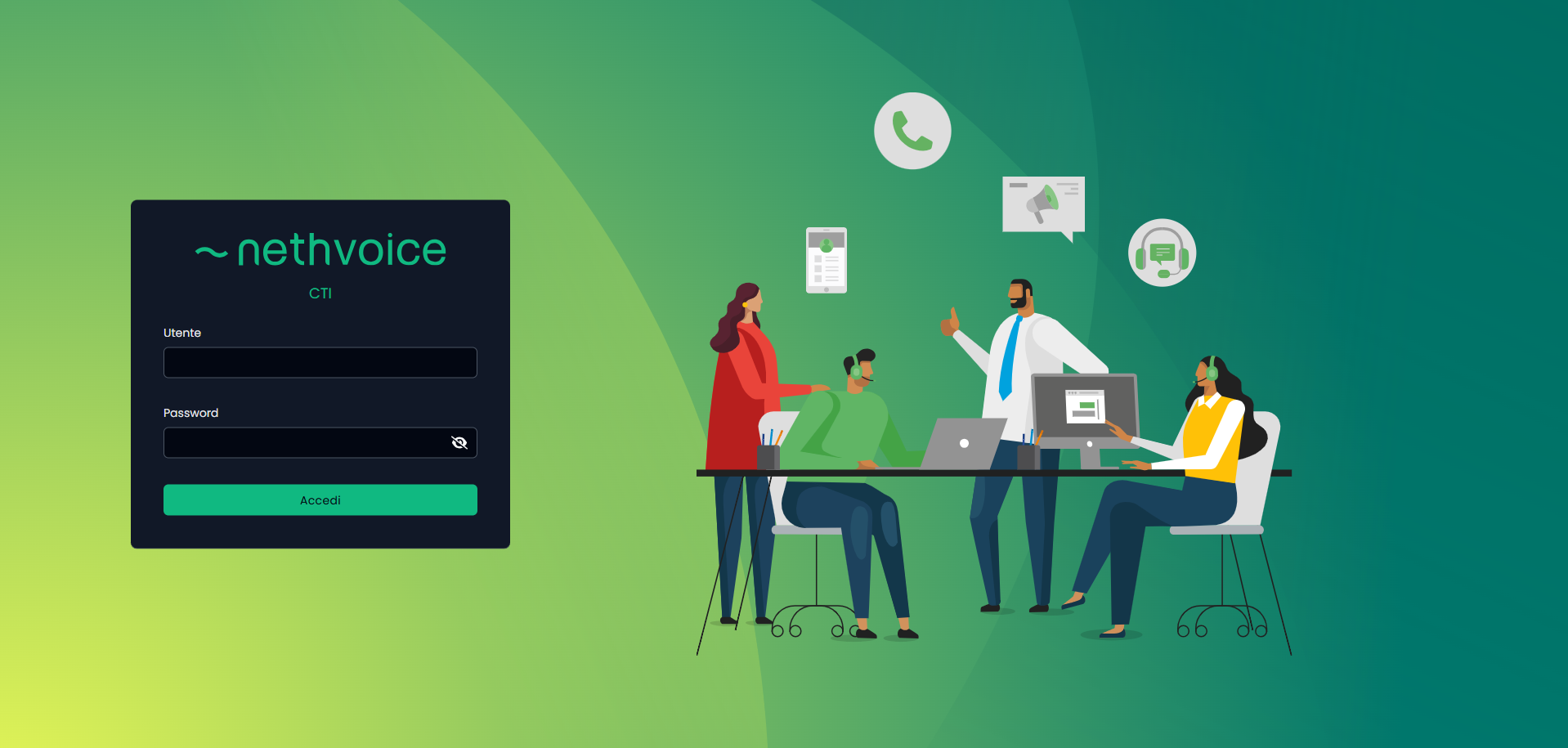
The connection link and login credentials are specific to your installation and are provided during the initial setup phase.
Requirements
- A modern web browser (Chrome, Firefox, or Edge)
- Active internet connection
- Valid NethVoice account
- Access to your organization's NethVoice server
Login Steps
- Open your web browser
- Navigate to your NethVoice CTI URL (provided by your administrator)
- Enter your username and password
- Click the login button
- You will be redirected to the main interface
Two-Factor Authentication (2FA)
Two-factor authentication (2FA) provides an additional layer of security for your NethVoice CTI account by requiring a second verification method during login.
Enabling 2FA
- Go to Settings → Authentication
- Look for the "Two-Factor Authentication" section showing the current status (enabled or disabled)
- Click the configuration button to begin setup
- Choose your setup method:
- QR Code: Scan the QR code with your authenticator app (e.g., Google Authenticator)
- Secret Key: Manually enter the secret code into your authenticator app
- Enter the OTP (one-time password) code from your authenticator
- Click confirm
- You will see a confirmation message when 2FA is successfully enabled
Recovery Codes
When 2FA is enabled, you can access your recovery codes in Settings (password verification required). These codes are:
- Single-use: Each code can only be used once
- Automatic regeneration: When all codes are used, new ones are automatically generated
- Emergency access: Use these codes if you lose access to your authenticator app
Logging In with 2FA
When 2FA is enabled:
- Enter your username and password as usual
- You will be prompted to enter your OTP code
- Open your authenticator app and enter the 6-digit code
- You will be logged in successfully
Disabling 2FA
To turn off two-factor authentication:
- Go to Settings → Authentication
- Click the configuration button
- Enter your password to confirm
- 2FA will be disabled
- You will be logged out from all active sessions for your account
Supported Authenticator Apps
2FA works with any standard OTP (one-time password) authenticator. Tested and confirmed working apps include:
- Google Authenticator (all platforms)
- Bitwarden (password manager with 2FA support)
- Any other OTP-compliant authenticator app