Other Features
Presence and Main Device Management
Click on your NethVoice CTI Avatar to manage your presence status and select your main telephone device.
Presence Status
Communicate your telephone status to your colleagues to let them know if you are available or unavailable to receive calls:
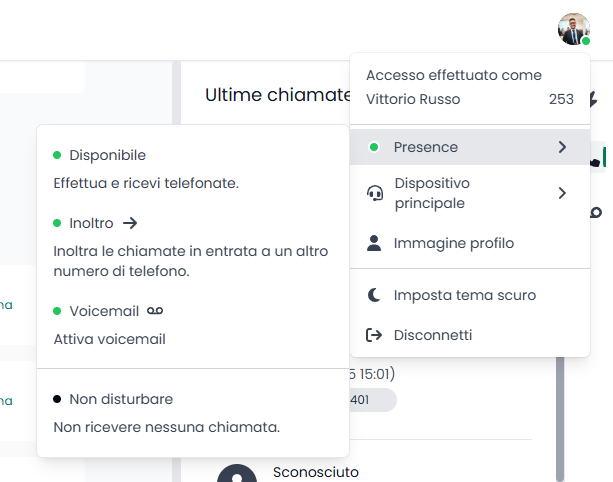
Your status color will change accordingly:
- Available (Green): You are available to receive calls.
- Available with Forwarding (Green with Forward Arrow): You are available, but calls are being forwarded.
- Available with Voicemail (Green with Voicemail Icon): You are available, but calls go directly to voicemail.
- Busy (Red): You are currently on a call or unavailable.
- Do Not Disturb (Black): You do not want to receive calls.
Main Device
If you have multiple phones available, you can select which one to use for making calls:
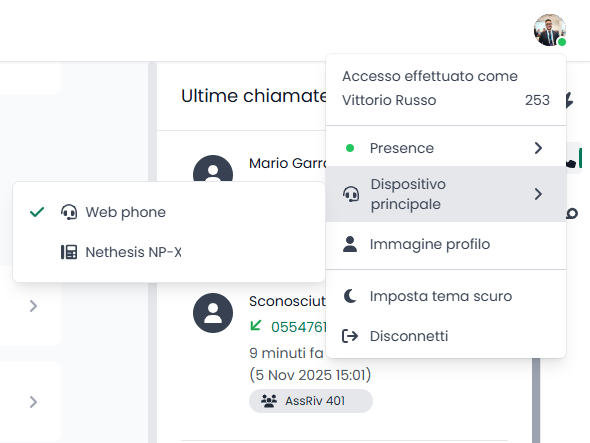
This allows you to seamlessly switch between different devices.
Speed Dial and Recent Calls
Speed Dial
Add contacts to your speed dial menu for quick access:

Simply click on a speed dial entry to call that contact instantly.
Recent Calls
View your recent incoming and outgoing calls:
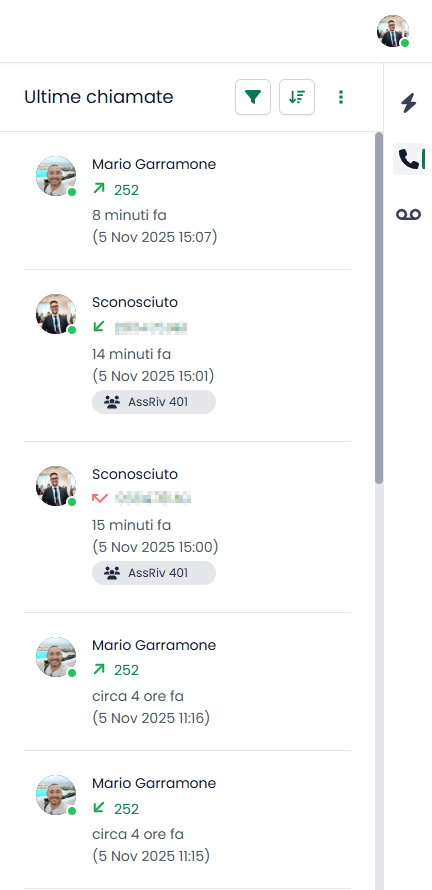
You can quickly redial or check call history from this list.
Voicemail
You can access all voicemails left for your extension:
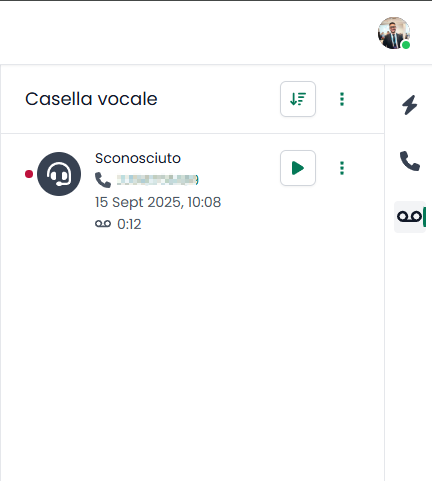
Each voicemail can be played, downloaded, called back, or deleted.
Operator Panel
View the real-time status of your colleagues:
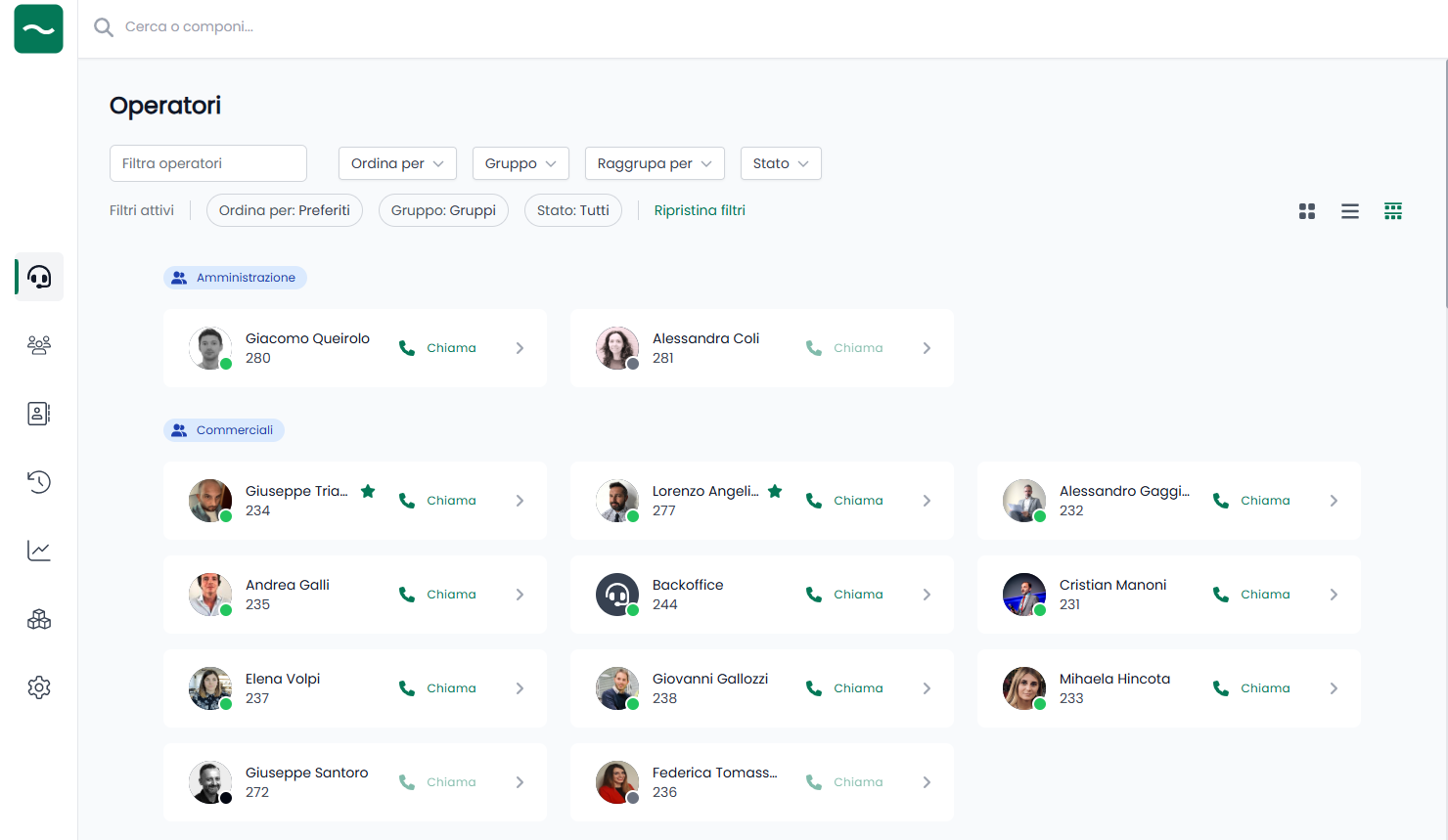
From here you can:
- Call your colleagues
- Check their availability
- Filter and organize the display
- See presence information
Queues Management
If you use call queues, you can manage them from here:
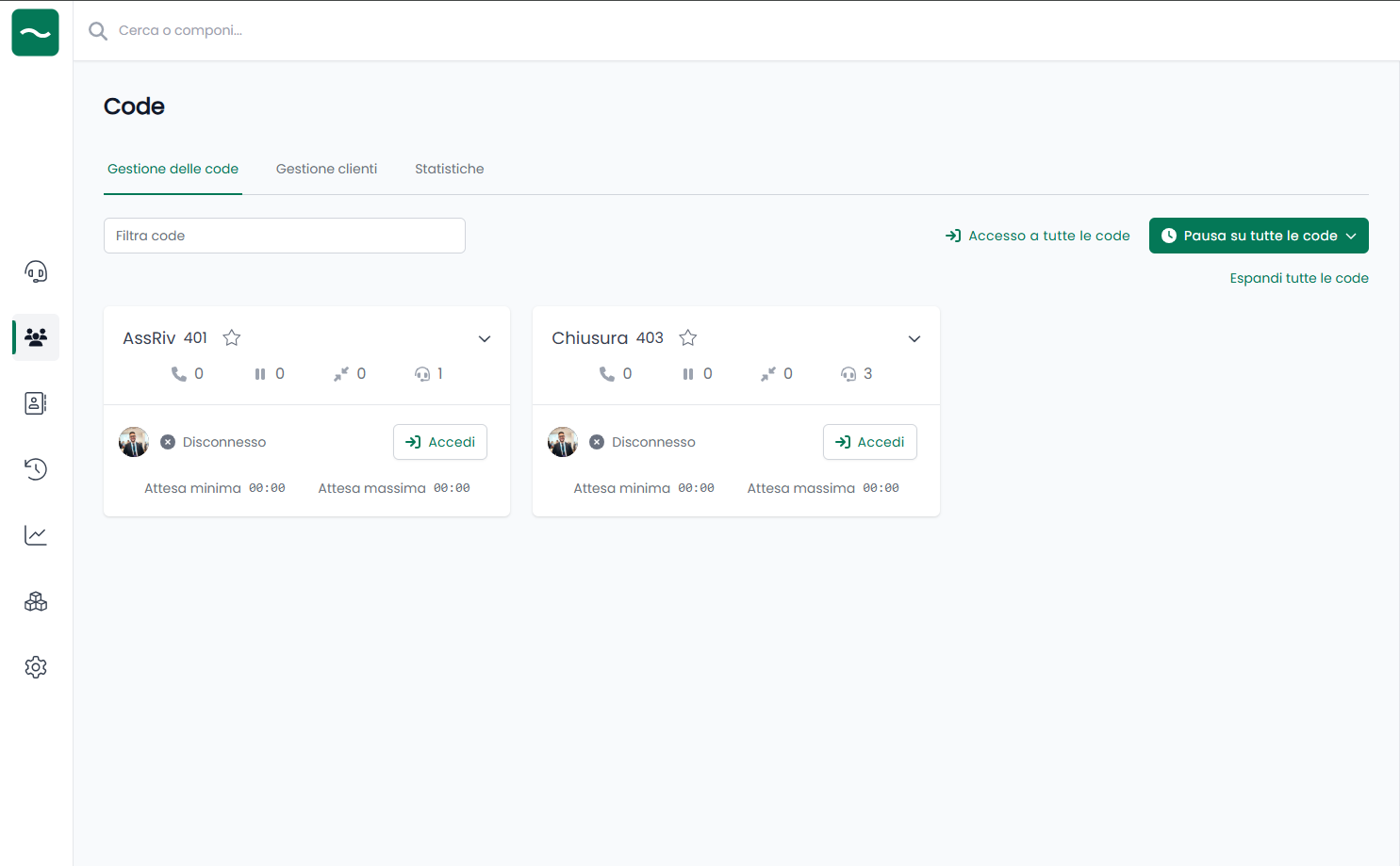
Queue Operations
Monitor incoming calls and calls being handled by colleagues:
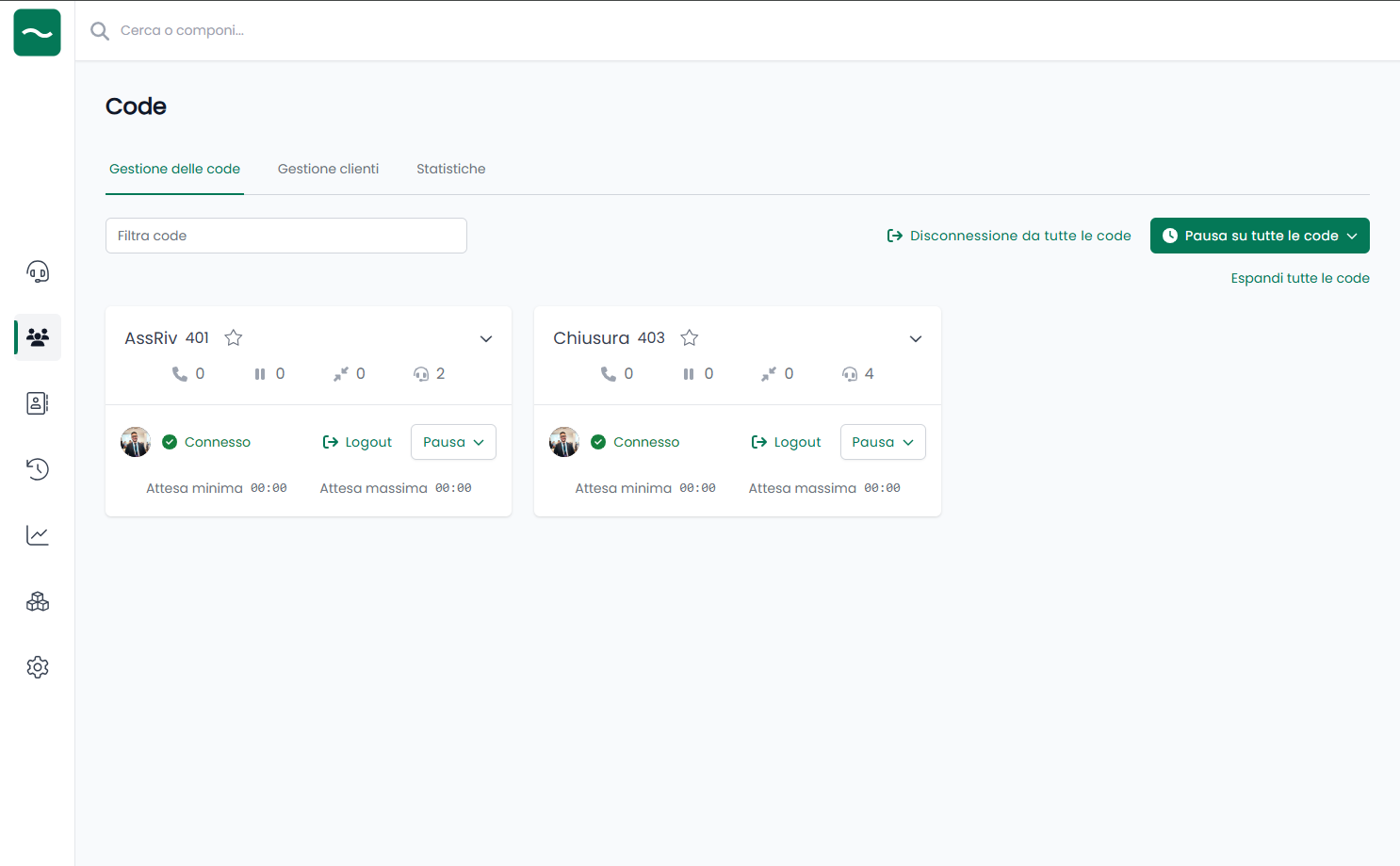
Queue Controls:
- Join/Leave Queue: Enter or exit a specific queue with the "Join/Leave" button
- Pause: Temporarily avoid receiving calls with the "Pause" button
- Manage All Queues: Use a single button to manage all queues simultaneously
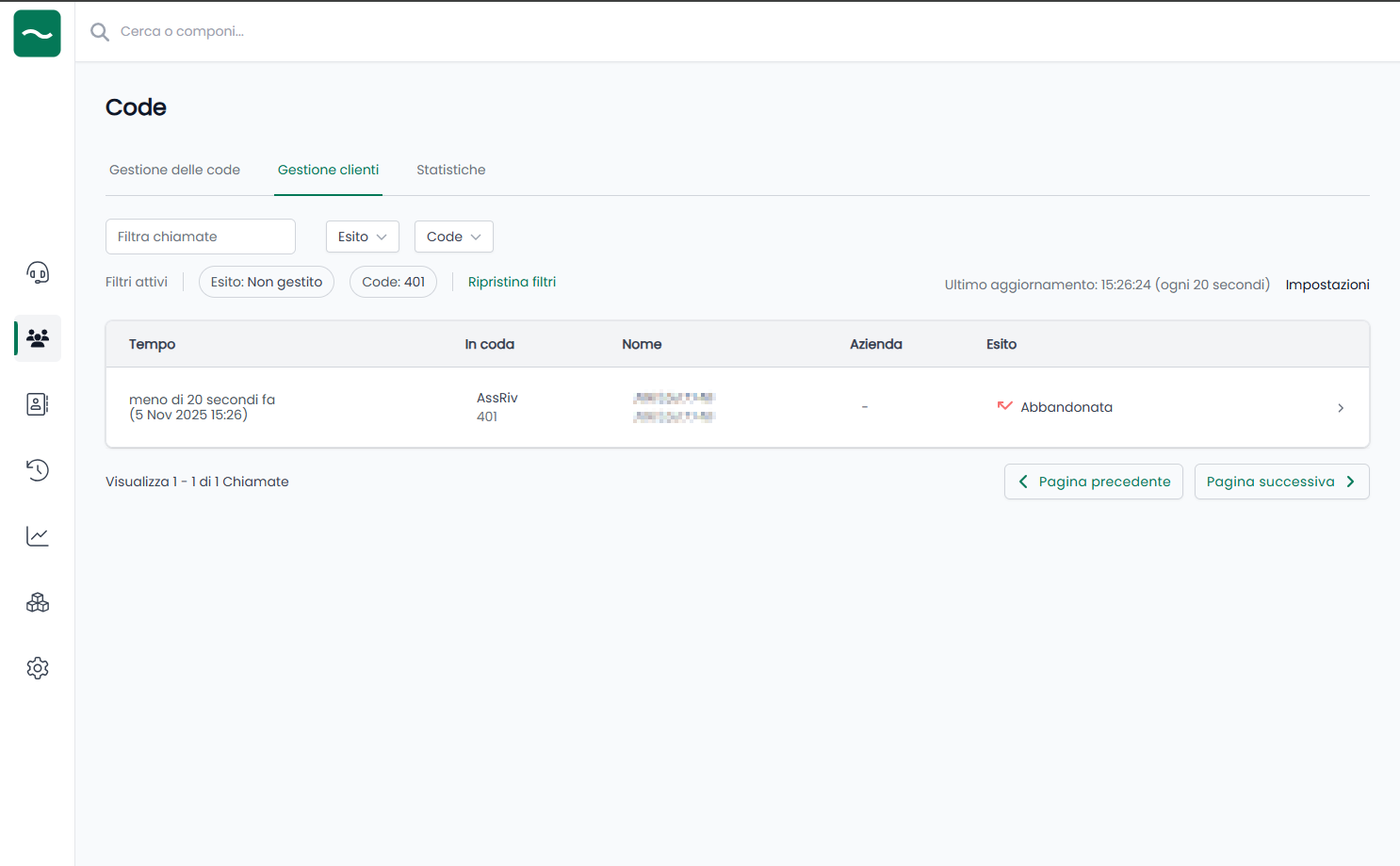
Missed Calls
Verify if you missed any calls and call back your clients:
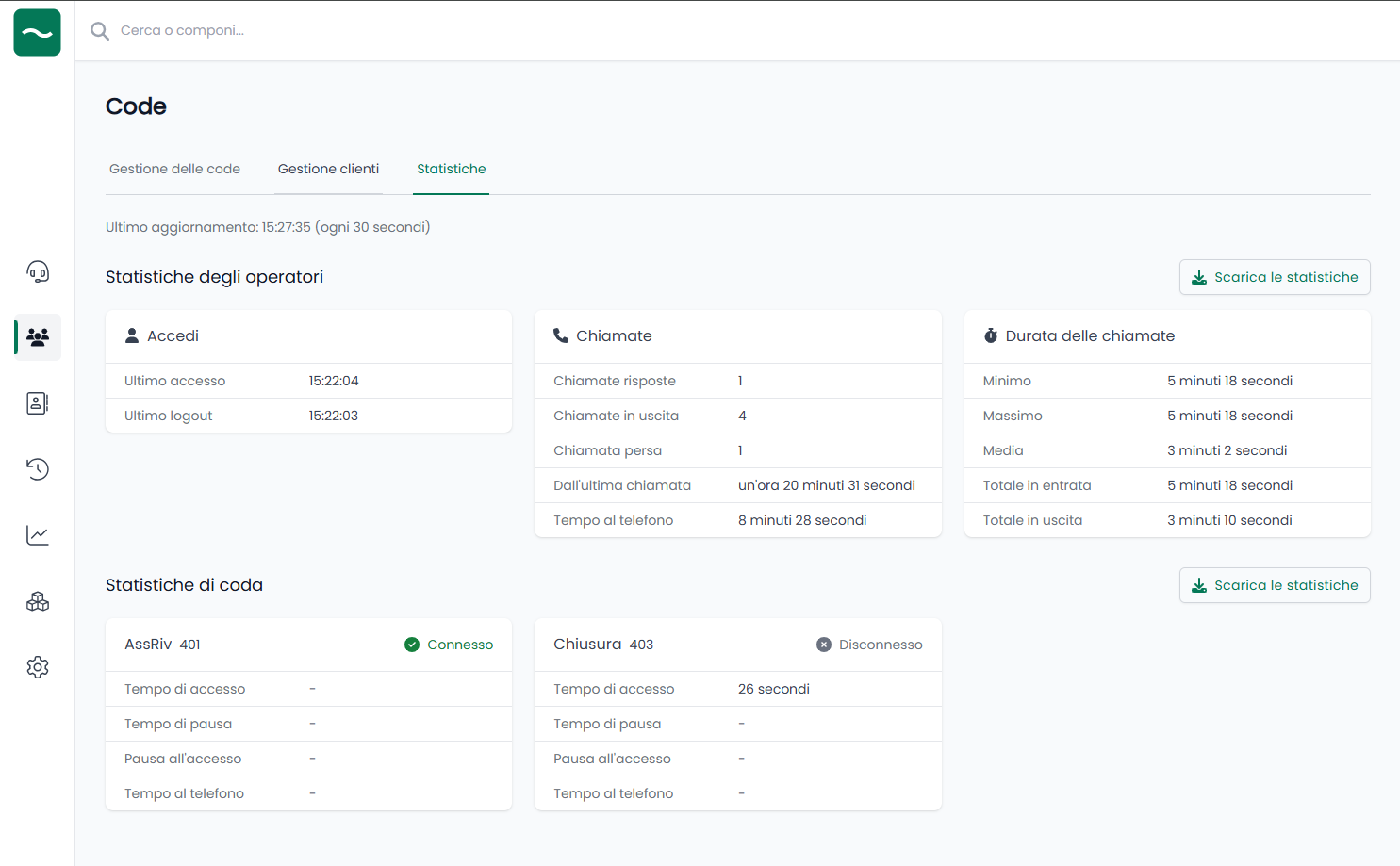
Statistics
Monitor your call statistics within queues:
Address Book
Viewing Contacts
View your NethVoice CTI address book:
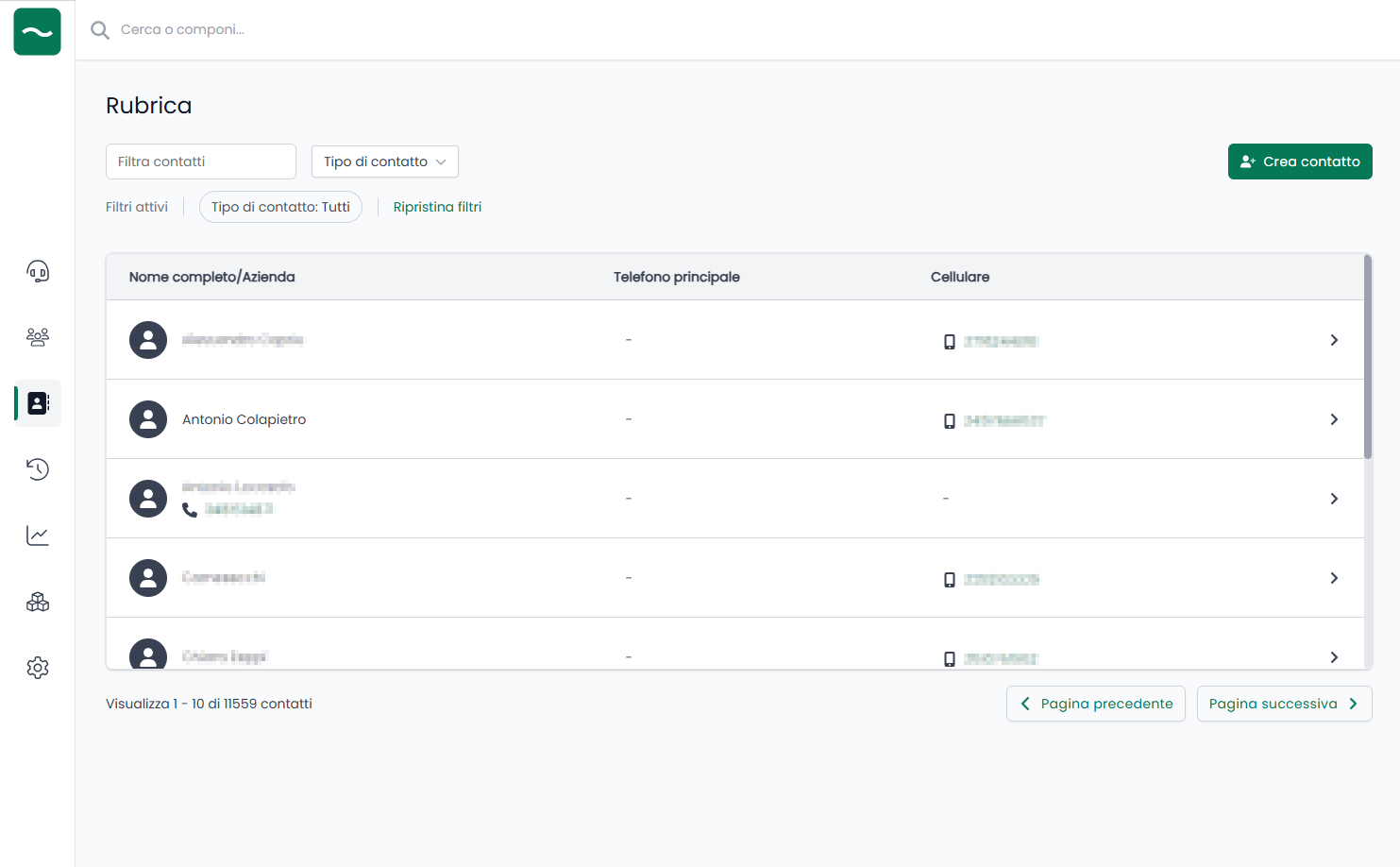
Search for contacts quickly and efficiently.
What you can do in the address book depends on your profile permissions:
- Users with
Access phonebookcan search and view contacts, but cannot create or change CTI contacts. - Users with
Manage private contactscan create and manage only their own private CTI contacts. - Users with
Manage private and shared contactscan also create and manage public CTI contacts and contacts shared with their available groups. - Contacts imported from centralized phonebook sources are always available in read-only mode.
Creating Contacts
Add new contacts using the "Create Contact" function (subject to specific permissions):
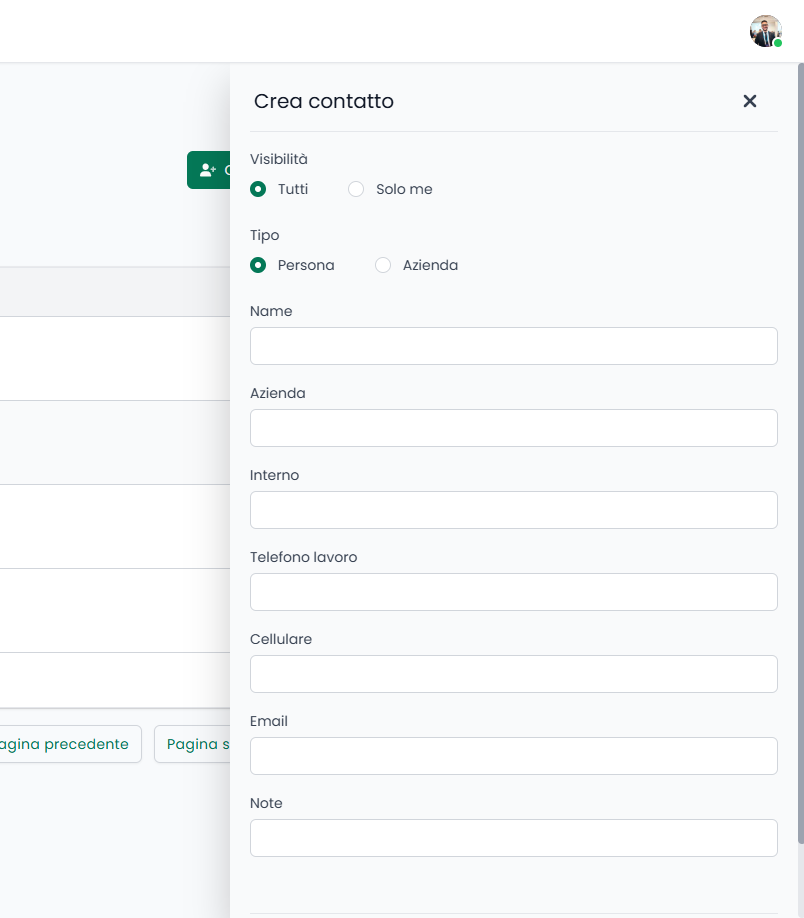
When your profile allows contact sharing, you can choose the visibility of a CTI contact. Depending on the permissions assigned by the administrator, you may be limited to private contacts only, or you may also be allowed to create public contacts and contacts shared with your available groups. If the group-sharing option is not visible, your profile does not include Manage private and shared contacts or no groups are available to your user.
You can add:
- Contact first name and last name
- Company and job title
- Phone numbers: extension, work phone, mobile phone, secondary work phone, secondary mobile phone, home phone, other phone, fax
- Email addresses: work, home and other email address
- Address, city, province, postal code and country
- Social profiles: LinkedIn, Instagram, Facebook and website
- Notes
Call History
Use convenient filters to search for calls from your extension, group, or entire phone system (subject to specific permissions):
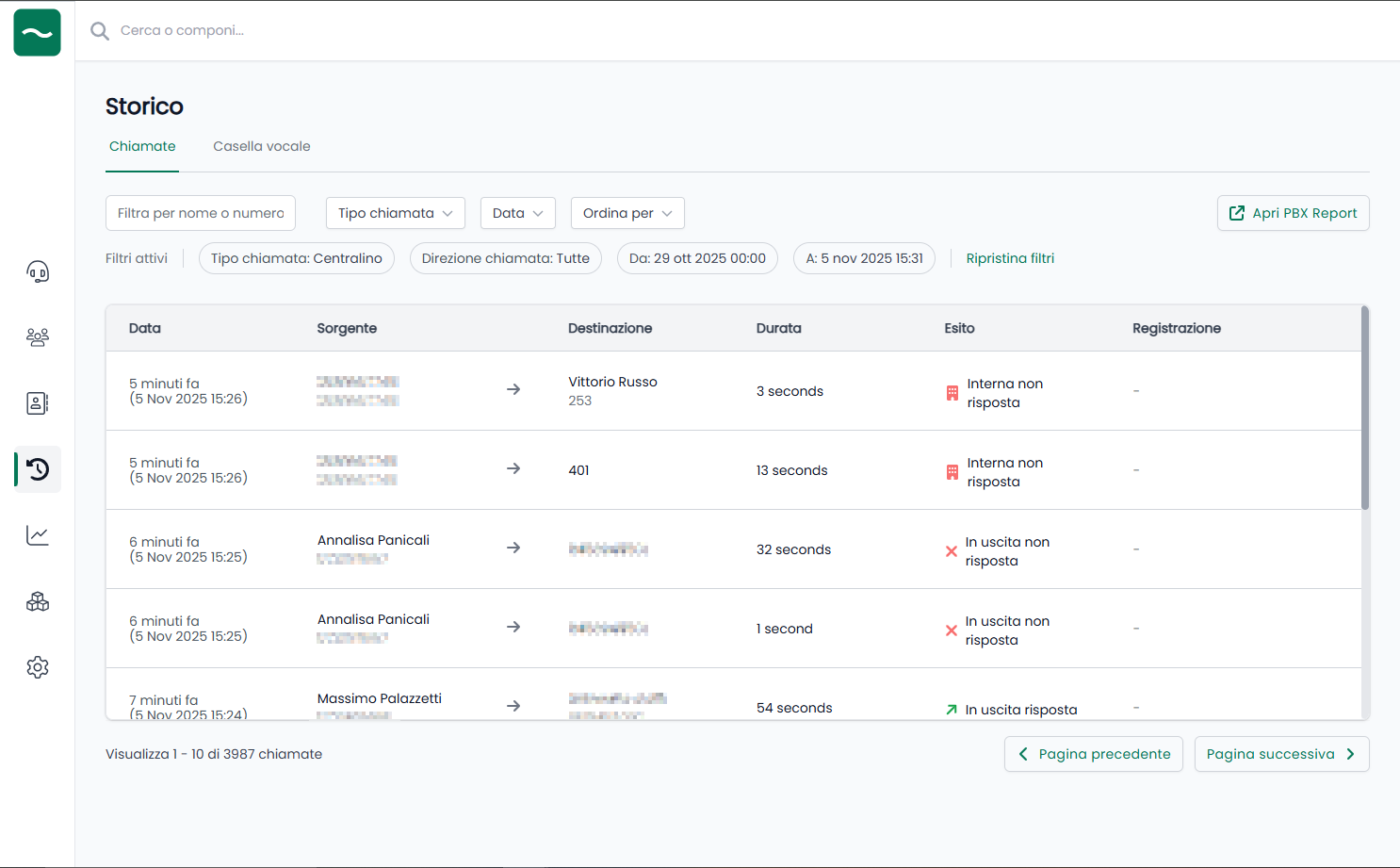
Available Filters:
- Date range
- Call type (incoming/outgoing/missed)
- Contact name
- Duration
- Call status
- Content type, including summary, transcription, and voicemail when available
When AI call insights are enabled by the administrator, History can also show post-call transcription and summary results. From the call actions menu you can open the available content directly from the selected call.
Queue Manager
Administer configured queues on the phone system (subject to specific permissions):
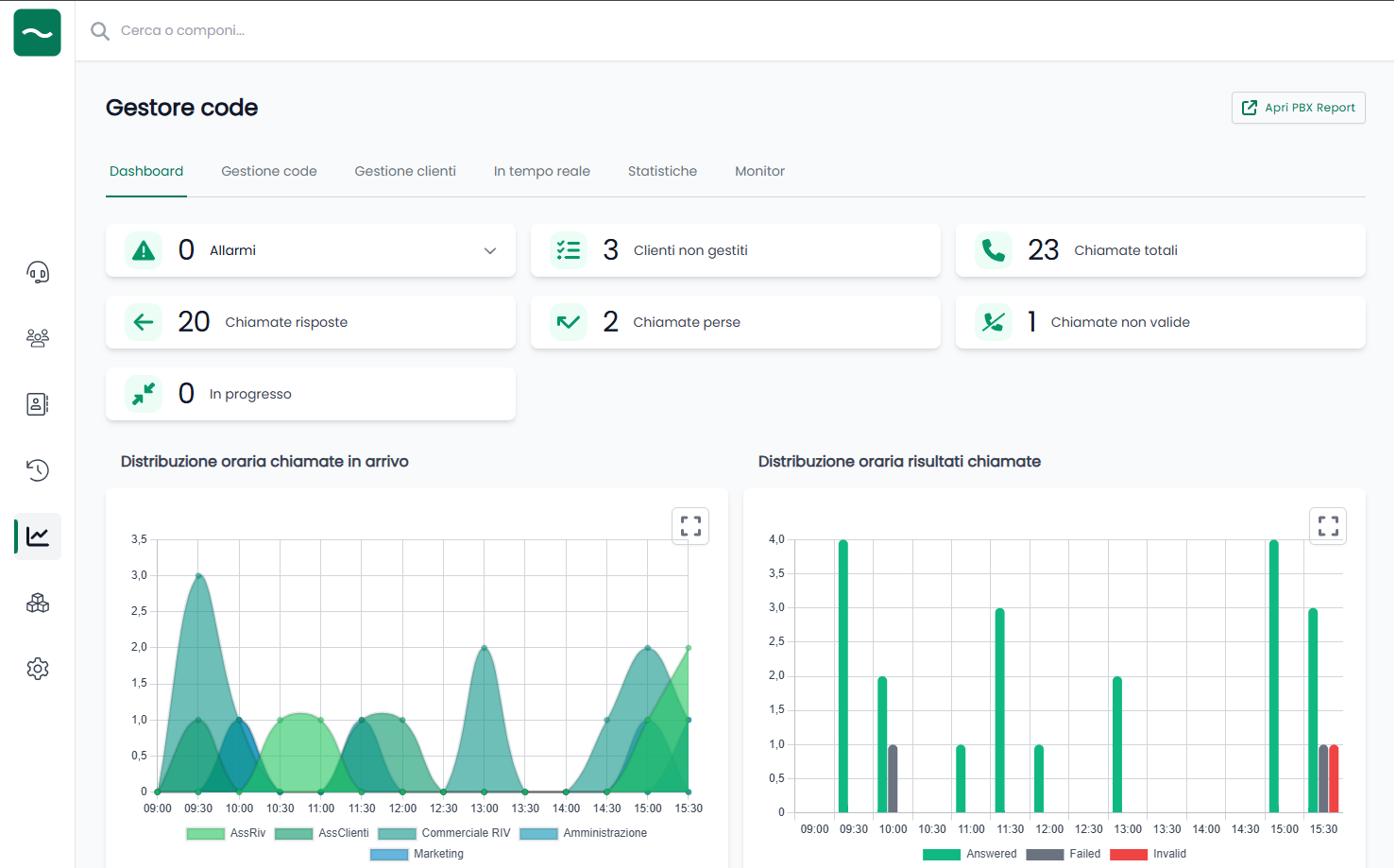
Dashboard
View a summary of all configured queues on the system:
See graphs and statistics for all queues.
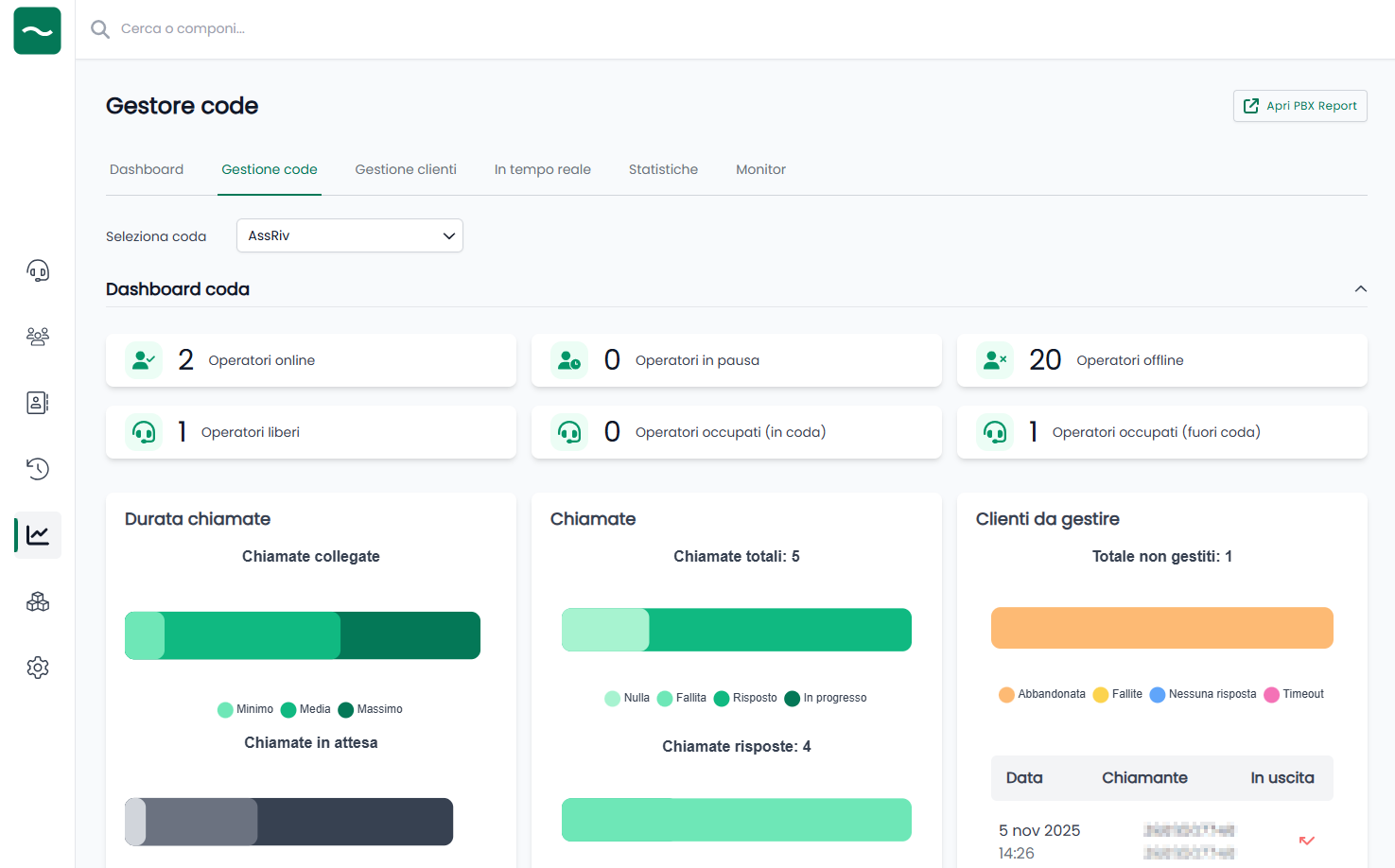
Queue Management
For each queue, view details of managed calls and control agent behavior:
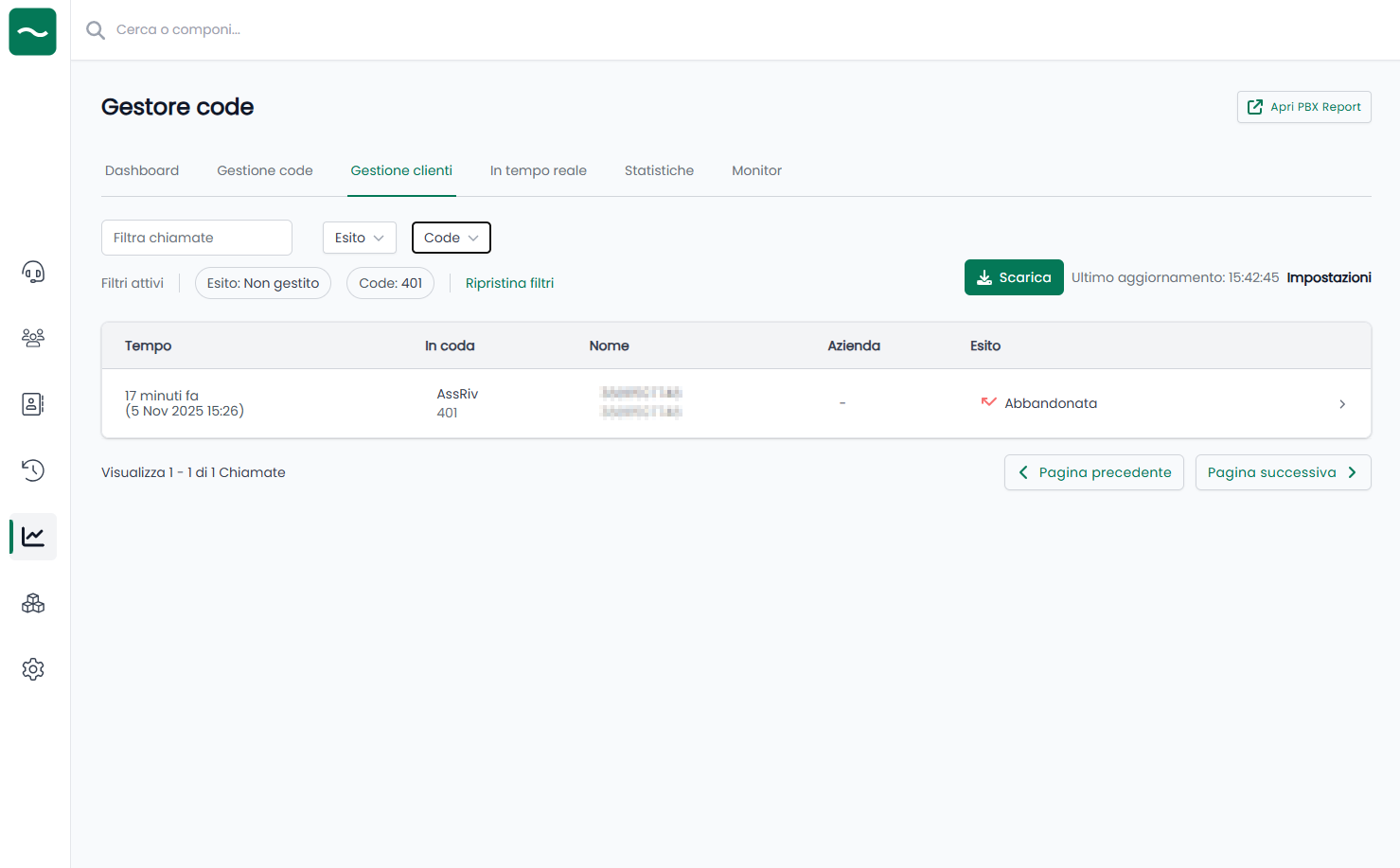
Unhandled Clients
Quickly verify if all calls have been answered:
Real-time Summary
Real-time overview of queue situations:
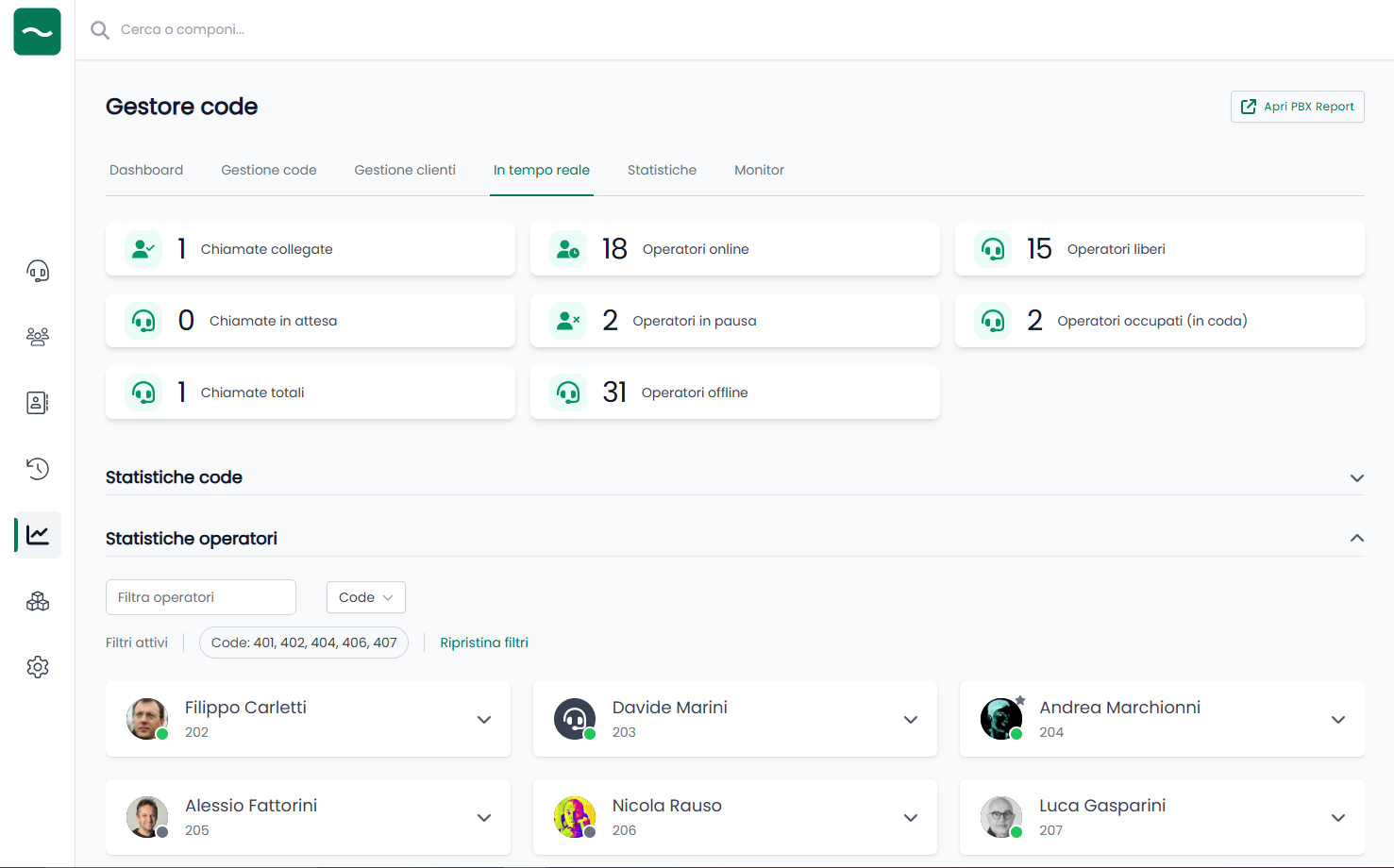
Filter individual queues or operators to verify the day's performance.
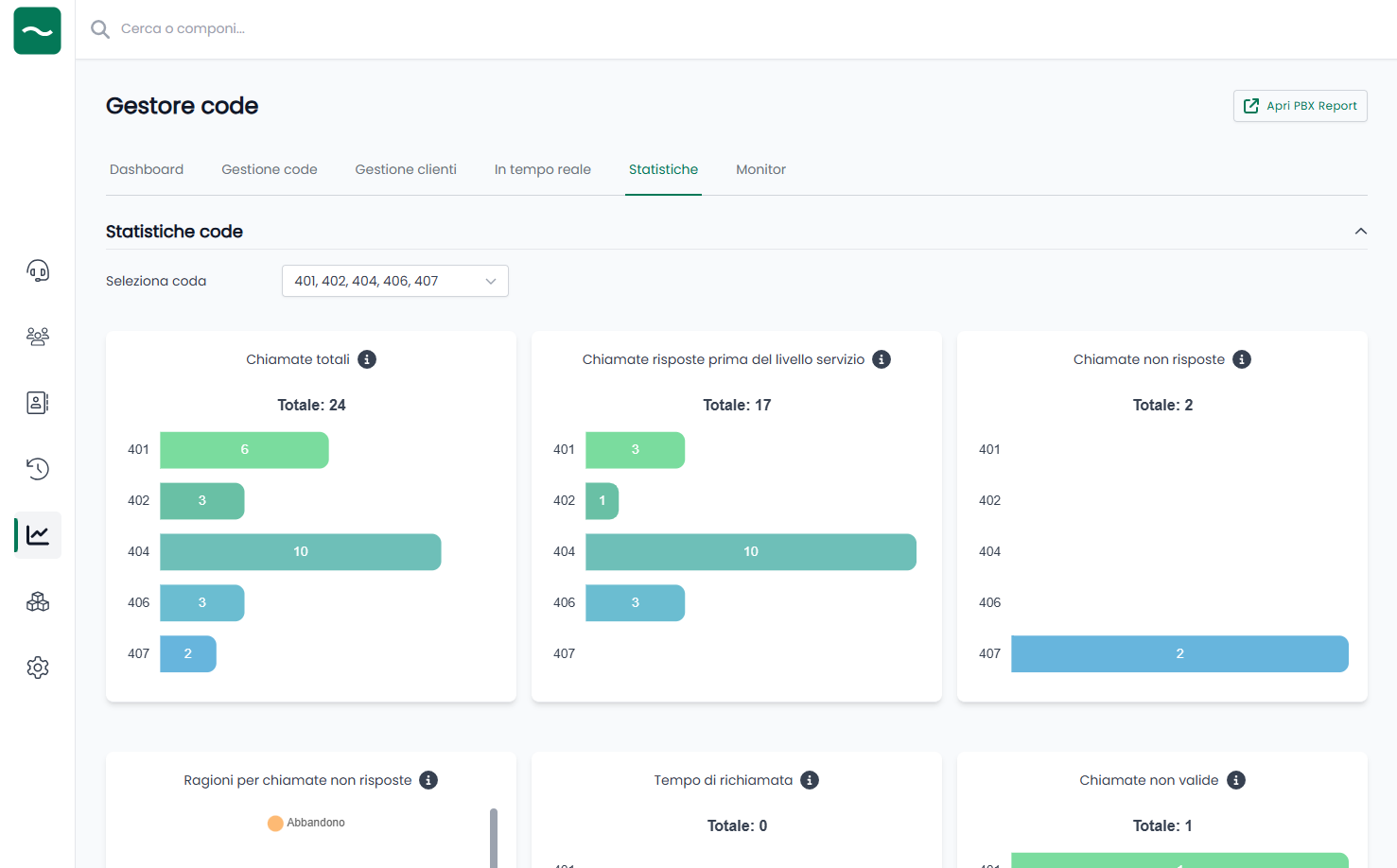
Statistics
Summary graphs of queue situations:
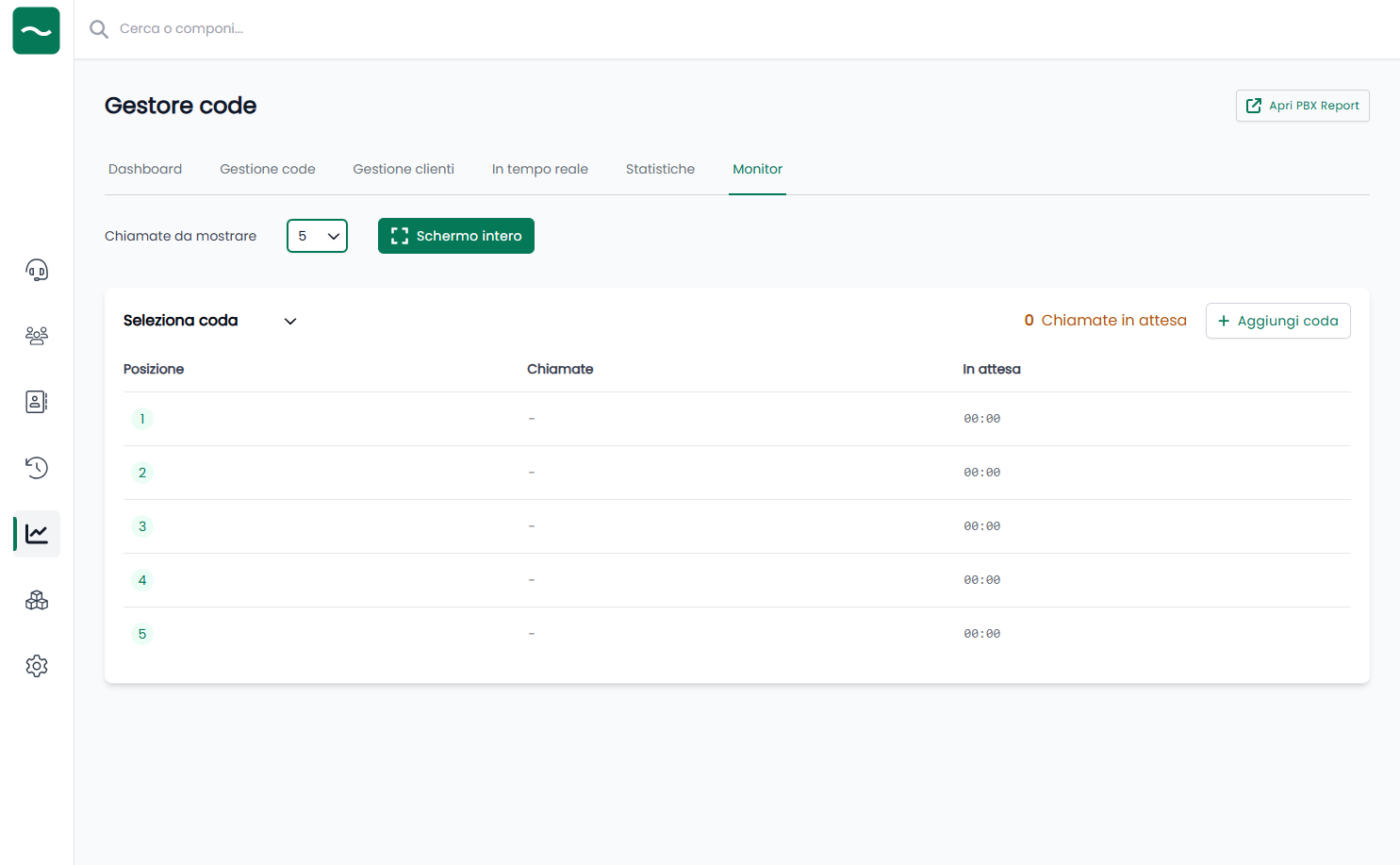
Monitor
Display the list of queued calls on a monitor:
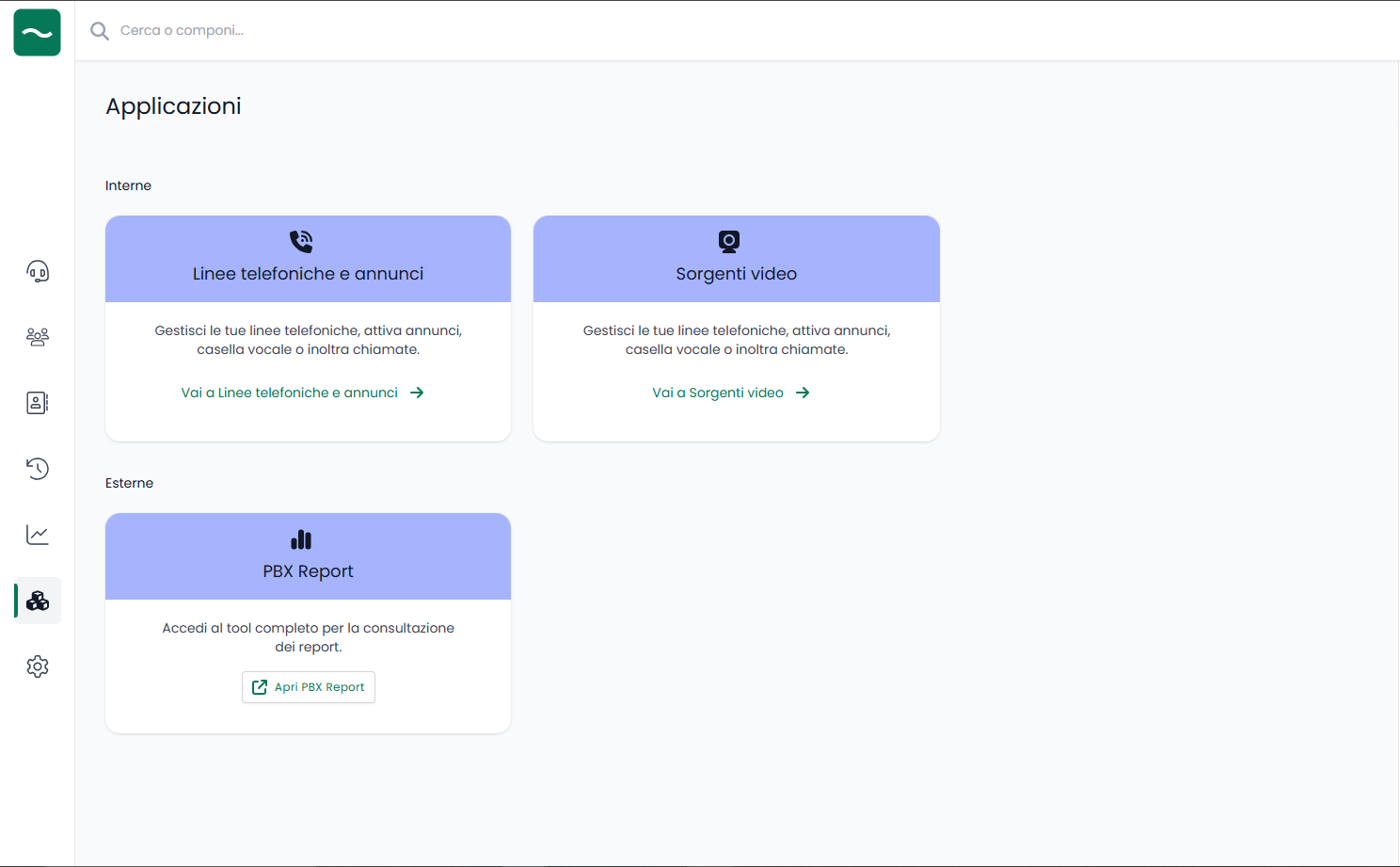
Applications
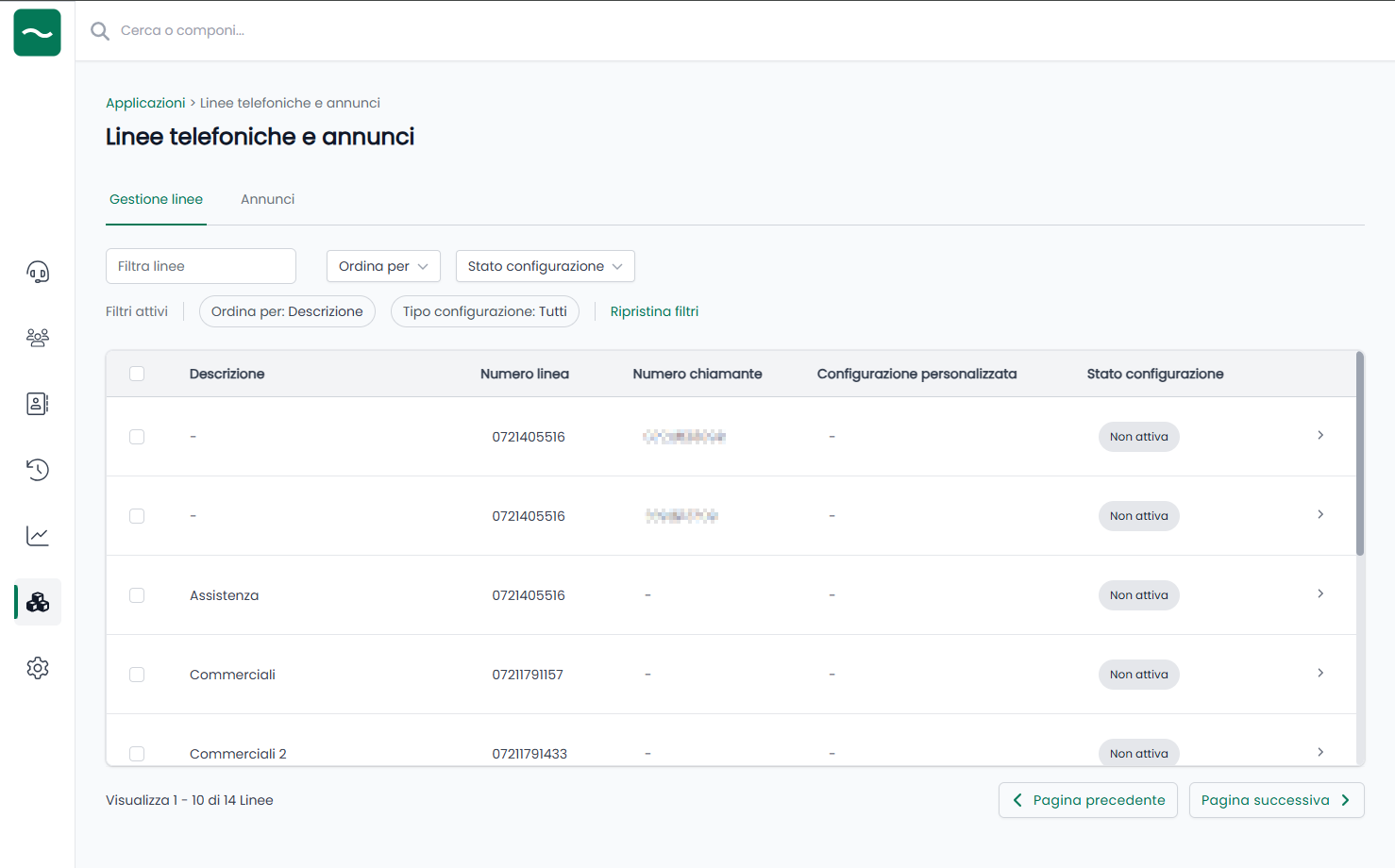
Phone Lines and Announcements
Find and manage the phone lines of your PBX (subject to specific permissions):
Line Details
Click on your phone line to check closures and settings:
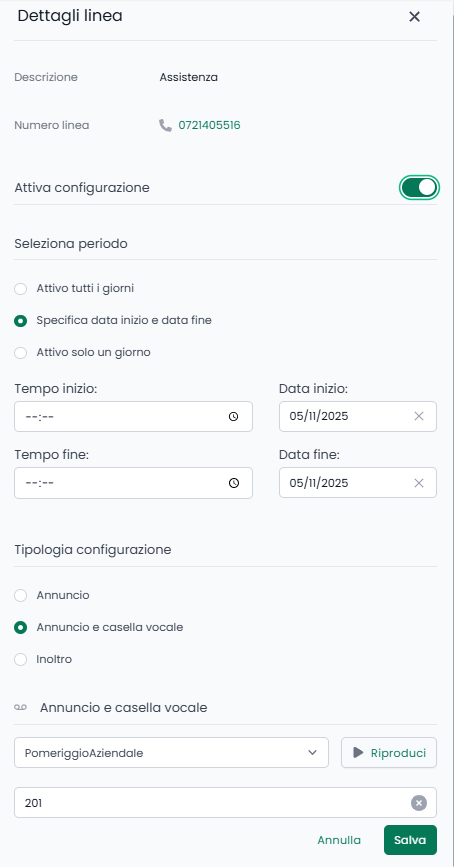
You can control:
- When to activate closure: Manually activate, select specific days, or set automatic start/end periods
- Play announcement: Have an announcement played
- Announcement + Voicemail: Play announcement and leave voicemail option
- Forward call: Forward calls to another number
Announcements
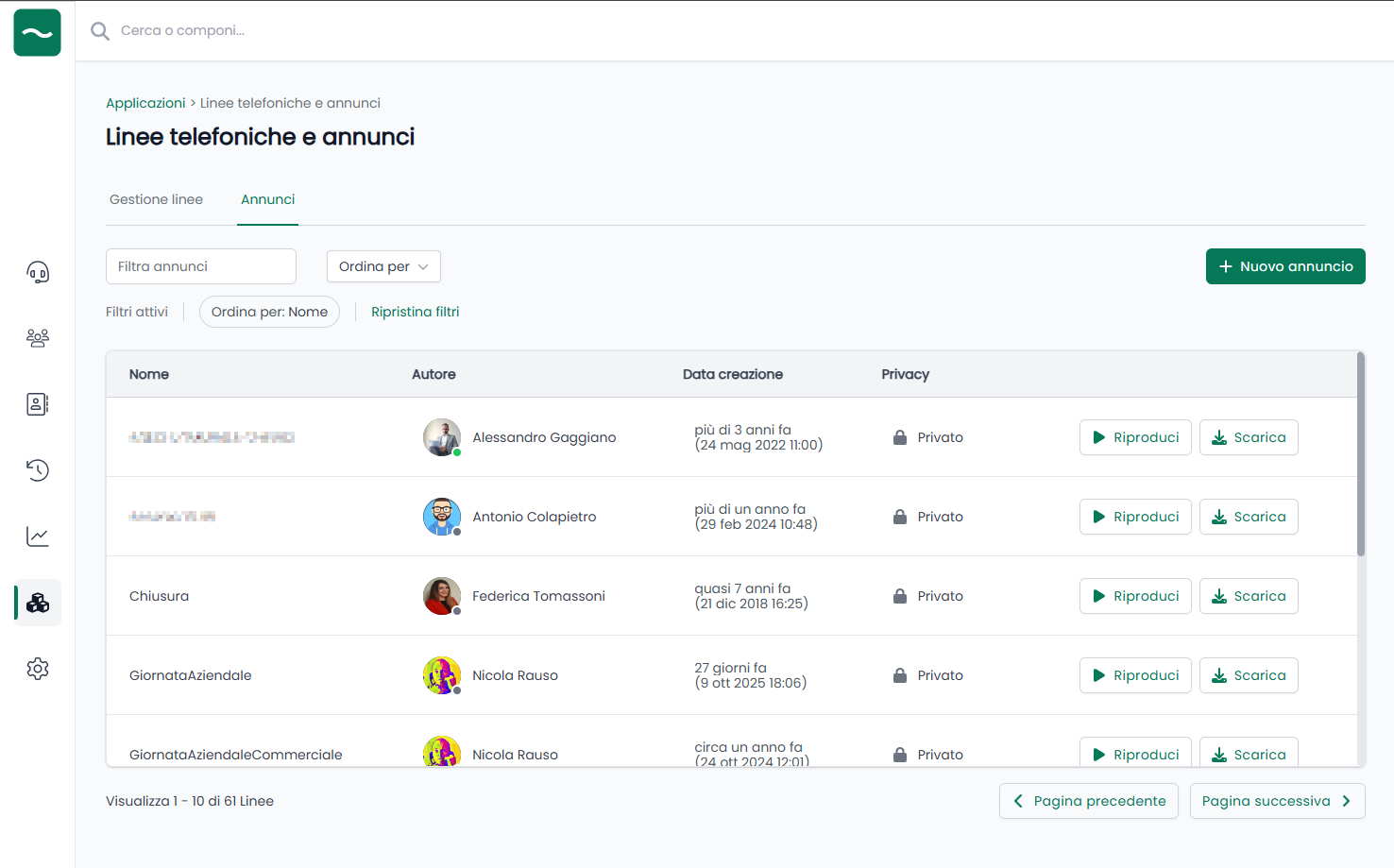
Use the Announcements menu to upload or record new announcements. You can also listen to or delete existing announcements (subject to specific permissions):
Video Sources
Advanced video intercom management. Manage and control your video intercoms (subject to specific permissions).
PBX Report
Access Advanced Reporting for your phone system (subject to specific permissions).
Voice Transcription and Call Summary
NethVoice can provide two related AI-assisted call features:
- Live transcription: text generated while a call is in progress and shown in Phone Island.
- Post-call content: transcription and, when enabled, an AI-generated summary available after the call from History > Calls.
Requirements
Two separate things are required: a per-user permission to view the content, and the features enabled on the system by an administrator.
- Permission to view (per user): your user profile must include the Transcription and Summary permission. It lets you open live transcription during a call and view post-call transcriptions and summaries from History. Without it the transcription and summary controls are not available, even when the feature is enabled on the system.
- Enabling transcription and summaries (administrator, NethVoice Integrations page): an administrator turns the features on from the NethVoice Integrations page. Call transcription requires a valid Deepgram API key; AI-generated summaries additionally require an OpenAI API key with the call summary option enabled.
Generated content is available only for calls with usable audio: very short, silent, or failed calls may not produce a transcript or summary.
AI-generated text can contain mistakes. Review important content before copying, sharing, or saving it.
Supported calls and limitations
All calls are supported for transcription and summary; the only exception is multi-party conferences, which are not transcribed or summarized.
Your privacy is always preserved: you only see the transcriptions and summaries of conversations you took part in, never those of other users.
Live transcription during calls
During an active call:
- Open the Phone Island side actions.
- Select Open transcription when the action is available.
- The live transcription panel opens and starts receiving text for the current call.
- Interim text may change until final segments are confirmed.
- Close the transcription panel to stop live transcription for that call.
Live transcription is for the active call only. Completed-call content is reviewed later from History.
Post-call transcription and summary
After a supported answered call ends, NethVoice processes the available call audio. Processing can take some time, depending on call length and service availability.
When processing is complete, the call can expose:
- Transcription: the full post-call transcript, shown read-only.
- Summary: an AI-generated summary. The summary can be edited and saved from the drawer.
To review generated content:
- Open History > Calls.
- Use the content filter when needed: Summary, Transcription, or Voicemail.
- Open the call actions menu.
- Select View summary when a summary is available, or View transcription when only the transcript is available.
When a summary is available, the summary drawer also lets you expand and review the full transcription.
Summary notifications
When call summary is enabled for your user, CTI can notify you when a summary becomes ready.
From Settings > Notifications you can enable or disable Call summary notifications. The preference is shared between the web phone and NethLink.
CTI shows an in-app notification when a summary is ready. If browser notifications are allowed and the CTI page is not focused, CTI can also show a system notification. Opening the notification or the in-app action opens the related summary drawer.
Settings
Customize your NethVoice CTI by accessing Settings:

Available Settings
- Devices: Control your phones and their status
- Mobile App: Generate QR code to connect your smartphone (subject to specific permissions)
- Incoming calls: Control how your application behaves when receiving external calls. This includes choosing your ringtone, selecting where the sound plays, and configuring optional automatic URL actions triggered by incoming calls.
- Notifications: Configure notifications for AI-generated call summaries when the feature is enabled for your user.
- Customer Card: Configure how the customer card behaves (subject to specific permissions)
- Queues: Decide how to automate your queue access (subject to specific permissions)
- Profile Picture: Modify your avatar
- Theme: Choose light or dark theme based on your preferences
- Integrations: Integrate your Phone Island with external tools
- Cache: Clearing browser cache can help resolve some page loading issues
Incoming calls
The Incoming Calls settings allow you to configure how the system handles external calls, including ringtone behavior, audio output, and automated URL actions:
- Ringtone Settings: Choose the sound that plays when an incoming call is received.
- Ringtone Output Device: Select which audio device will play the ringtone.
- Parameterized URL: You can configure the system to automatically open a URL whenever an external call comes in. This is useful for CRM lookups, customer information pages, or internal tools.
- URL Opened on External Incoming Call: The URL is configured by system administrator.
- Pop-Up Permissions: Your browser must allow pop-ups for this feature to work.
- URL Opening Trigger: Choose when the configured URL should be opened.
Supported Browsers
Currently supported browsers are:
- Google Chrome - Version 121.0.6167.189 and later
- Mozilla Firefox - Version 123.0 and later
- Microsoft Edge - Version 122.0.2365.59 and later